FAQ - Event Guidance
Event Guidance
See all articlesCoinUp APP Asset Transfer Guide
The Asset Transfer feature allows you to quickly move funds between different accounts within the CoinUp platform without any blockchain transaction fees. Transfers are typically completed instantly.
1. What is Asset Transfer?
Asset Transfer allows you to move assets between your different CoinUp accounts, such as:
- Finance Account → Spot Account
- Spot Account → Futures Account
- Futures Account → Finance Account
Transfers are processed internally within the platform, requiring no blockchain confirmation and incurring no transfer fees.
2. How to Transfer Assets?
Step 1: Go to the Assets Page
Open the CoinUp APP and tap [Asset] in the bottom-right corner of the homepage.
On the Asset Overview page, tap [Transfer].
Step 2: Select Transfer Direction
On the Transfer page:
- Select the account to transfer from
- Select the account to transfer to
- Choose the asset you wish to transfer
Please ensure that the transfer direction is correct.
For example:
- From Finance Account to Spot Account
- From Spot Account to Futures Account
Step 3: Enter the Transfer Amount
After selecting the asset:
- Enter the amount you wish to transfer
- Or tap [All] to transfer your entire available balance
The system will display your available transferable balance automatically.
Step 4: Confirm the Transfer
Please review the following information carefully:
- Asset
- From Account
- To Account
- Transfer Amount
Once everything is correct, tap [Confirm].
Step 5: Transfer Completed
After the transfer is successfully processed, the assets will be credited to the destination account immediately.
You can return to the Assets page to verify the updated account balance.
3. Frequently Asked Questions
1. Is there any fee for asset transfers?
No.
Internal transfers between CoinUp accounts are completely free of charge.
2. How long does an asset transfer take?
Transfers are usually completed instantly.
In rare cases, temporary delays may occur due to system maintenance or network issues.
3. Why am I unable to transfer assets?
Possible reasons include:
- Insufficient available balance
- Assets are temporarily frozen or restricted
- Margin is being used for open futures positions
- Assets are locked by pending orders
- Account restrictions triggered by risk control measures
Please check your account status and try again.
4. Can I withdraw assets after transferring them?
Asset transfers only change the location of funds between your internal accounts and do not affect ownership of the assets.
If you wish to withdraw, please ensure the assets are transferred to a withdrawal-supported account and meet the platform's withdrawal requirements.
Important Notes
- Please verify the transfer direction before confirming.
- Internal asset transfers do not incur any fees.
- Asset transfers are processed internally and do not generate on-chain transaction records.
- If you encounter any issues, please contact CoinUp Customer Support for assistance.
Thank you for choosing CoinUp. We wish you a smooth and successful trading experience! 🚀
Future Contract Leaderboard – User Guide & FAQ
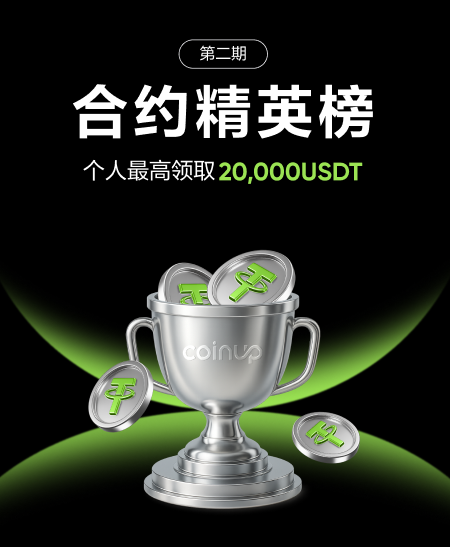
1) Feature Introduction
The Elite Leaderboard is a trading leaderboard feature launched by CoinUp. Through transparent data display and social mechanisms, it allows users to:
View the real trading performance of contract traders
Understand different trading styles (Profit Amount / ROI / Trading Volume)
Participate in leaderboard events and win rewards
Follow outstanding traders and build trading social connections
The leaderboard supports multi-dimensional rankings and is suitable for different types of users:
Beginners: Learn trading styles and observe stable traders
Advanced users: Benchmark personal performance and optimize strategies
Professional traders: Increase exposure and attract followers
2) How to Enter the Contract Leaderboard
Users can enter the Contract Leaderboard page through the following three methods, all of which will lead to the same [Elite Leaderboard Homepage].
Method 1: Homepage Event Pop-up
Enter the CoinUp homepage
Click the “Elite Leaderboard” event pop-up
The system will directly redirect to the leaderboard homepage
👉 This is the fastest direct access
Method 2: Main Navigation Entry
Open the App main navigation / More features page
Click “Elite Leaderboard”
Enter the leaderboard homepage
👉 A stable and long-term entry point
Method 3: Contract Trading Page
Enter any contract trading page (e.g. BTCUSDT Perpetual)
Click the “Elite Leaderboard” entry on the page
Enter the leaderboard homepage
👉 Targeted at users actively trading contracts, with higher conversion
3) Contract Leaderboard Homepage Description
After entering the Contract Leaderboard, users can see the following content:
Event Information Section
Current event prize pool
Event countdown
Number of participants
Leaderboard Dimension Switching
Users can switch different ranking dimensions via Tabs:
Time Dimensions
Daily
Weekly
Monthly
Metric Dimensions
Profit Amount (USDT)
ROI (%)
Trading Volume (USDT)
After switching, leaderboard data will refresh automatically.
Leaderboard List
Each ranked user will display:
Avatar / Nickname
Current ranking
Corresponding metric data
Share button
My Ranking (My Information)
The user’s own status is fixed in the leaderboard:
If not ranked: displays “Not Ranked”
If ranked: displays current ranking and corresponding metric data
Clicking “Not Ranked” or the ranking information will enter the Personal Profile (Trading Performance Page).
4) Share Feature Description
The Contract Leaderboard supports two sharing methods:
Event Sharing (General Poster)
Entry: “Share Event” at the top of the leaderboard homepage
Displayed content includes:
Event theme
Prize pool information
Invitation code / UID
QR code
Supported actions:
Save image
Copy
More (system share)
👉 Suitable for promoting the event itself
Personal Performance Sharing (Personal Poster)
Entry: Click the “Share” button of a user in the leaderboard
Displayed content includes:
User avatar / nickname / UID
Current ranking
Corresponding metric data (Profit Amount / ROI / Trading Volume)
Invitation code / QR code
👉 Shared content changes automatically based on the currently selected metric
5) Personal Profile (Trading Performance Page) Description
After entering the personal profile, users can view their detailed trading performance.
The page contains four core Tabs:
1️⃣ Profit Amount
Displays absolute profit (USDT)
Usually shown in bar charts
2️⃣ ROI
Displays ROI (%)
Used to measure trading efficiency
3️⃣ Asset Trend
Displays account asset changes over time
4️⃣ Common Trading Pairs
Displays distribution of most frequently traded pairs
Used to identify concentration risk
Time Range Switching
Users can select:
7 days
30 days
180 days
Last 1 year
After switching, data in the current Tab will refresh synchronously.
6) Follow and Social Features
Follow Others
Click “Follow” on the leaderboard or other users’ profiles
After following, you can view their trading performance
You can unfollow at any time
Followers / Following List
Click “Followers” or “Following” in the personal profile
View the corresponding user lists
Supports follow back / unfollow operations
7) Reward Records Description
Access Path
Assets → Contract Account → Elite Leaderboard → Reward Records
Page Content
Total reward amount (USDT)
Reward details (ranking, reward type, time)
Date Filter
Supports:
7 days / 30 days / 90 days
Manual date range selection
After filtering, reward summary and details will update synchronously.
8) Frequently Asked Questions (FAQ)
Q1: Who can participate in the Contract Leaderboard?
Users who have completed CoinUp KYC verification and opened a contract account can participate.
Q2: What does “Not Ranked” mean?
It means your data has not entered the leaderboard display range under the current time and metric dimensions.
Q3: Is leaderboard data real-time?
Leaderboard data is updated according to system-defined frequency and is not updated per second.
Q4: Will switching Profit Amount / ROI / Trading Volume affect rankings?
Yes.
Different metrics use different sorting rules, and ranking results may vary.
Q5: If ROI is high but profit amount is low, will it affect the leaderboard?
Profit amount and ROI are independent leaderboard dimensions and do not affect each other.
Q6: What data is displayed on the shared personal poster?
Displayed content depends on the currently selected leaderboard metric:
Profit Amount leaderboard → shows profit amount
ROI leaderboard → shows ROI
Trading Volume leaderboard → shows trading volume
Q7: Can completed leaderboards still be viewed?
Yes.
You can view past events and final rankings via “Elite Leaderboard History”.
Q8: When are leaderboard rewards distributed?
Reward distribution time is subject to specific event rules and can be checked in reward records.
Q9: Will following others affect my ranking?
No. Following is a social feature only and does not affect leaderboard data.
Q10: Does the Contract Leaderboard support spot or other products?
Currently, it focuses on contract trading and will gradually expand to more market types.
How to Access the CoinUp Activity Center
What is the CoinUp Activity Center?
The CoinUp Activity Center is the official unified platform for CoinUp activity registration and participation. All official marketing activities are showcased and open for registration here. Users can simply enter the Activity Center to view activity details and participate with a single click.
What are the core functions of the Activity Center?
1. Unified Activity Display
- View all ongoing/upcoming/completed activities.
- Each activity includes complete rules, reward details, and schedule.
2. One-Click Registration
- Log in to CoinUp to register with one click.
- The system will automatically read your UID/linked mobile number/linked email address.
- No need to repeatedly fill in information, making the process faster.
3. Pre-registration Function
- Pre-register for activities that haven't started yet.
- You will automatically be considered a full participant once the activity starts.
- You will receive an in-app notification when the activity starts.
4. Activity Sharing
- Each activity supports one-click sharing links.
- Share to Telegram, Twitter, social media groups, etc.
- Shared links do not contain any personal information or invitation relationships.
How to Access the Activity Center?
Users can access the CoinUp Activity Center in the following ways:
📱App
- After logging into your CoinUp account, click the three horizontal lines in the upper left corner of the app's homepage. In the "Activities & Rewards" section, click "Activity Registration" to enter.
- Enter the Activity Center, select an activity of interest under "In Progress," and click "View Details" to read the activity rules.
- Check "I have read and agree to the activity terms," and click "Register Now." Users who meet the activity requirements can successfully register to participate. Click "Share Activity" to share the activity with friends to view and participate.
💻 Web Version
- Visit the CoinUp website through your browser. After successfully logging in, click "Earn" - "Activity Registration" in the top navigation.
- Enter the Activity Center, select an activity of interest under "In Progress," and click "View Details" to read the activity rules.
- Check "I have read and agree to the activity terms," and click "Register Now." Users who meet the activity requirements can successfully register to participate. Click "Share Activity" to share the activity with friends to view and participate.
Frequently Asked Questions
- Why can't I register for the activity?
Possible reasons include:
- Event registration is not yet open.
- Event registration slots are full.
- This event requires KYC (Know Your Customer) verification, which you have not yet completed.
- You have successfully registered or pre-registered for this event.
- You have not checked the box indicating "I have read and agree to the event terms."
The system will provide corresponding explanations on the page.
- What is pre-registration? Can I cancel it?
Pre-registration is applicable to events that have not yet started:
- After successful pre-registration, it will automatically take effect when the event starts.
- You can cancel your pre-registration at any time before the event starts.
- After the event starts, it cannot be canceled; you can only wait until the event ends.
- I have already registered; can I register again?
No. Each user can only register once for the same event; the system will automatically verify. If you have already registered or pre-registered, the button will display a "Registration Successful" status.
- How are event rewards distributed?
- All registration data will be verified by CoinUp officials.
- Rewards will be distributed uniformly according to the event rules.
- The distribution time and method are subject to the specific event terms.
- Will sharing the event link link bind my account?
No. The event sharing link does not contain UID, invitation, or commission relationships; it is only used for event display and participation entry.
- Why does the event center sometimes only display "Coming Soon / Ended"?
When there are no ongoing events on the platform, the system automatically hides the "In Progress" label, only displaying "Coming Soon" and "Ended" events to ensure users can see upcoming promotional events as soon as they are available.
- Friendly Reminder
- Please be sure to carefully read the event rules and terms.
- Participation conditions may vary for each event.
- CoinUp reserves the right to the final interpretation of the event.
🔗 Official Links
📱 Download App: https://download.coinup.tw/en_US/h5-downloads
🌐 Official Website: https://www.coinup.io/zh_CN/
🐦 Twitter (English): https://twitter.com/CoinUpOfficials
🐦 Twitter (Chinese): https://twitter.com/COINUPZH
💬 Telegram (English): https://t.me/coinupglobal
💬 Telegram (Chinese): https://t.me/coinup_zh
📩 Email: support@coinup.io
CoinUp.io — The world’s leading one-stop crypto derivatives trading platform.
Trade safer, faster, and more stably.
Coupon Center Introduction (Futures Trial Fund Coupons)
Introduction to Futures Trial Funds, How to use Futures Trial Funds on the App, How to use Futures Trial Funds on the Web, and Frequently Asked Questions.
Introduction
To help users better understand and experience CoinUp contract trading products and become familiar with contract trading mechanisms and risk control logic, the CoinUp platform will periodically issue contract trial funds (Trial Fund / Bonus Fund) to eligible users.
Futures Trial Funds are USDT issued by the platform and will be credited directly to the user’s Futures Wallet. During trading, they are automatically used to offset the following costs:
Opening fees
Closing fees
Funding fees
Trading losses (negative PnL)
When the cumulative net profit generated from trial fund trading reaches:
- Profits generated from trial fund trading must reach 50 USDT before withdrawal.
- Users can apply to withdraw a portion of their profits (maximum 200 USDT per transaction).
Users may also trade futures using only Trial Funds, without depositing any of their own funds.
Core Principles
Reduce trading fees without limiting profits
All leverage levels and order types are supported
Unified margin model (Trial Funds + personal funds)
Only one Trial Fund can be activated at a time
How to Obtain Trial Funds
Users may receive Trial Funds through:
Campaigns
Tasks
Invitations
KOL promotions
Manual distribution
How to Use Futures Trial Funds (App)
Step 1
Tap the three-line menu in the top-right corner of the page.
Step 2
Select “Activities & Rewards”, then tap “Coupon Center”.
Step 3
In the Coupon Center, you will see three categories:
Unused
Used
Expired
Step 4 — Unused
Displays Trial Funds that have not yet been activated.
Select a Trial Fund and tap “Activate” to start using it.
Step 5 — Used
View the usage history of activated Trial Funds.
Step 6 — Expired
Displays Trial Funds that have expired without being used.
Step 7
If a KYC prompt appears during activation, please complete KYC verification first before using the Trial Funds.
How to Use Futures Trial Funds (Web)
Step 1
From the top navigation bar, select “Earn”, then click “Coupon Center”.
Step 2
You will be redirected to the Coupon Center page, where three statuses are displayed:
Unused
Used
Expired
Step 3 — Unused
Click “Activate” to activate and use the Trial Fund coupon.
Step 4 — Used
Click “Details” to view the usage history.
Step 5 — Expired
Click “Details” to view expired Trial Fund records.
Step 6
If KYC has not been completed, a security prompt will appear during activation.
Please complete KYC verification before using the Trial Fund.
Frequently Asked Questions (FAQ)
Q1: Who is eligible to use CoinUp Futures Trial Funds?
Any user who has completed CoinUp KYC verification is eligible.
Q2: Is there an expiration date for the contract trial funds? Can I still use them after they expire?
- The contract trial funds are valid from the date they are credited to my account.
- The default validity period is 7 days (subject to the information displayed on the activity page).
- Unused trial funds will automatically expire and be cleared.
- Expired funds cannot be recovered or reissued.
Q3: Can Futures Trial Funds be used as margin?
No. Trial Funds cannot be used as futures margin.
Q4: Can Trial Funds be used across different positions?
Yes. Trial Funds may be used for any position.
Q5: What happens if fees exceed the Trial Fund balance?
The system will deduct Trial Funds first. Any remaining amount will be deducted from your futures account balance.
Q6: What fees can Futures Trial Funds be used for?
Trial Funds can be used to offset:
Trading fees
Funding fees
Liquidation-related fees
Any fees labeled as “transaction fees” by the system
Trading losses
Q7: Will Trial Funds be used if I trade multiple pairs or positions?
Yes. Trial Funds can be applied across multiple trades, multiple orders, and multiple positions until fully consumed.
Q8: Why does my asset or transfer page show an unexpected balance?
Asset and transfer pages include Trial Funds in the displayed balance. The actual balance will be updated after positions are closed.
Please note:
Trading fees
Funding fees
Floating PnL
are not reflected immediately during open positions.
Q9: Can Futures Trial Funds be withdrawn?
- No. The contract trial fund can only be used to offset contract transaction fees, funding rates, or trading losses, etc., and cannot be withdrawn or transferred.
Q10: Will I receive a notification before Trial Funds expire?
Yes. If Trial Funds are unused or partially used, the system will send an App push notification 24 hours before expiration.
Q11: Can I use Trial Funds to open both long and short positions simultaneously?
No. Trial Funds do not support opening long and short positions at the same time.
Q12: Can profits be withdrawn if trading requirements are not met?
No. After activating Trial Funds, users must meet the required trading volume conditions. If the requirements are not met, profits cannot be withdrawn.
Q13: Are Futures Trial Funds applicable to all trading pairs?
Not necessarily. Some Trial Funds are limited to specific trading pairs. Please review the applicable trading pair rules before use.
Q14: What happens if I open a position using the trial fund, but the loss or transaction fees exceed the remaining trial fund balance?
If the trial fund has not expired, but the transaction fees or loss from this trade exceed the remaining trial fund balance, the system will automatically use your own assets to maintain the position.
Note:
- This position is still considered a trial fund transaction;
- If a profit is generated, the withdrawal conditions or profit cap rules for the trial fund must still be met. It is not a regular transaction using your own funds.
Q15: What happens to my positions after the contract trial fund expires?
- Once the contract trial fund expires, all positions generated using the trial fund will be immediately and forcibly liquidated by the system.
Q16: Can I withdraw or transfer assets during the contract trial fund period?
During the contract trial fund activation period:
- If a user attempts to transfer assets, the trial fund will be immediately cleared;
- If there are currently any positions, they must be closed first before a transfer can be made.
Q17: Are there any restrictions on the use of contract trial funds?
Yes. Contract trial funds are usually limited to a specified leverage ratio (5×) and a specified trading pair. Please refer to the rules and regulations of the trial funds you actually receive for specific applicable scope.
Q18) Are there any risk control restrictions for contract trial funds? What happens if they are violated?
Strict IP/device risk control: If wash trading occurs using the same IP address or device, trial fund access will be immediately blocked.
CoinUp reserves the right to, based on risk assessment,:
- Restrict account trading
- Recover trial funds
- Cancel profit eligibility
🔗 Official Links
📱 Download App: https://download.coinup.tw/en_US/h5-downloads
🌐 Official Website: https://www.coinup.io/zh_CN/
🐦 Twitter (English): https://twitter.com/CoinUpOfficials
🐦 Twitter (Chinese): https://twitter.com/COINUPZH
💬 Telegram (English): https://t.me/coinupglobal
💬 Telegram (Chinese): https://t.me/coinup_zh
📩 Email: support@coinup.io
CoinUp.io — The world’s leading one-stop crypto derivatives trading platform.
Trade safer, faster, and more stably.